How to Log In to InstaCams
If you are looking for the InstaCams login page, this guide explains exactly how to access your account, sign in securely, reset your password, and solve common access issues. You will also learn how to create an account if you are new to the platform, what to do if the login page does not load, and how to protect your login credentials. The goal is simple: help you complete the InstaCams login process quickly and without confusion.
InstaCams Login – Step-by-Step Guide
Access our platform in a couple of clicks by doing the following:
How to Access the InstaCams Login Page
If you are wondering how to login to InstaCams, you need to open the official login page from a secure browser session. Always make sure you are using the correct website address before entering your details.
Follow these steps:
- Open your preferred web browser.
- Enter the official InstaCams website URL in the address bar.
- Find the Log in or InstaCams Sign in button.
- Click it to open the InstaCams platform after adding your user logins.
Before continuing, check that the website uses a secure connection with HTTPS. This helps protect your account login information during sign-in.
Entering Your Username and Password
Once you are on the InstaCams login page, enter your account details carefully to avoid login errors.
Steps to complete your InstaCams account login:
- Type your email address or username in the first field.
- Enter your password in the password field.
- Click the Log in or Sign up button to continue.
If your login credentials are correct, you should be taken directly to your account. If not, double-check your spelling, password capitalization, and whether your email address has already been verified.
For a successful InstaCams sign-in, the following has to be true:
- Your account is registered correctly
- Your email is verified when required
- Your password is accurate
If you are wondering how to log in to InstaCams without errors, the safest approach is to enter your details manually and avoid autofill mistakes, especially on shared devices.
Logging In from Desktop and Mobile Devices
The InstaCams login process is similar on both desktop and mobile devices, but the layout may look slightly different depending on your screen size and browser type.
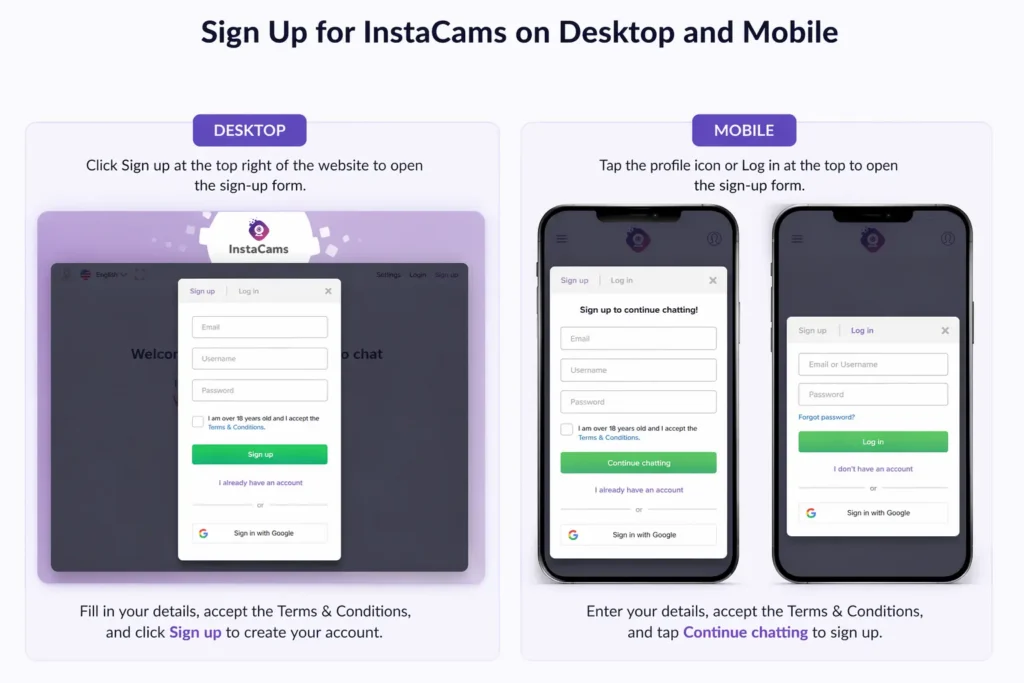
On desktop:
- Open the official site in your browser.
- Click the login button in the top-right corner.
- Enter your details and submit them.
On mobile:
- Open your mobile browser.
- Visit the official InstaCams website.
- Tap the visible Log in button at the top right of the screen.
- When the login modal opens on the page, enter your details.
- Tap Log in to access your account.
If a page does not display correctly on mobile, refresh the screen or switch to another browser. Keeping your browser updated should also improve secure login performance.
Instant 1-on-1 with real women
Connect in seconds. Private, encrypted, and built for easy, face-to-face fun.
How to Sign Up for InstaCams (If You Don’t Have an Account)
Creating a New InstaCams Account
If you cannot complete the InstaCams login because you do not yet have an account, you need to register first. The InstaCams sign-up process is short and requires only basic account details.
To create an account:
- Visit the official InstaCams website.
- Click the Sign up button.
- Enter your email address.
- Choose a username.
- Create a strong password.
- Confirm age requirement.
- Submit the registration form.
Use a valid email address during registration. It may be needed later for account recovery, secure login confirmation, or support requests.
Email Verification Process
After registration, you need to verify your email before you can access your account fully. This step helps confirm ownership of the email linked to your InstaCams account login.
To verify your email:
- Open your inbox.
- Look for the verification email from InstaCams.
- Click the verification link inside the message.
If the email does not appear:
- Check your spam or junk folder
- Make sure you entered the correct email during sign-up
- Request another verification email
Email verification is an important part of account access and account recovery.
InstaCams Login Issues and How to Fix Them
Forgot Password – How to Reset It
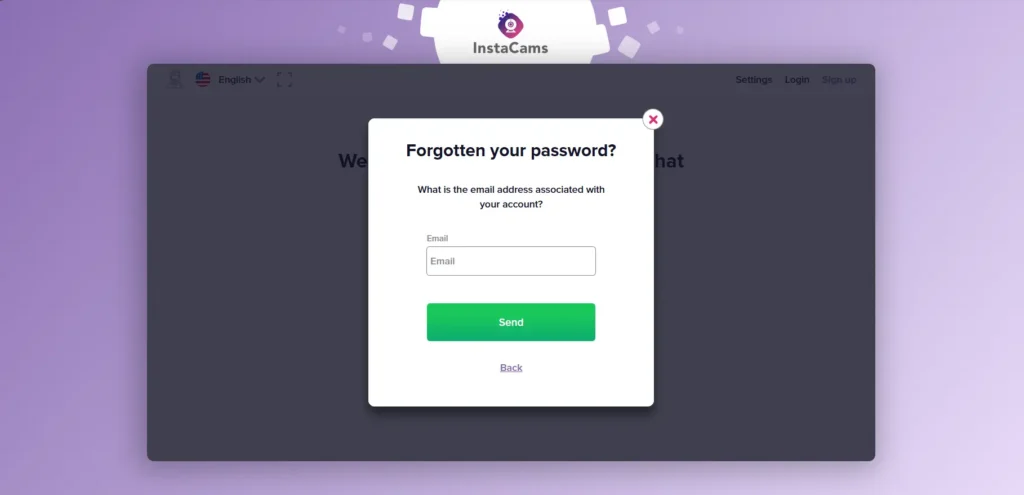
One of the most common login issues is forgetting your InstaCams password. If that happens, use the InstaCams password reset option.
Forgot your InstaCams password? Here’s what to do:
- Go to the InstaCams login page.
- Click Forgotten.
- Enter your registered email address.
- Submit the request.
- Check your inbox for the reset link.
- Open the link and create a new password.
When creating a new password:
- Use at least 8 characters
- Include letters, numbers, and symbols
- Avoid simple or reused passwords
If you do not receive the reset email, verify the address you entered and check your spam folder. This is usually the fastest way to solve InstaCams password reset issues.
Account Access Issues or Restrictions
Some users report that they can’t log in to InstaCams even when they believe their details are correct. In many cases, this happens because of temporary security measures, repeated failed attempts, or account restrictions.
Try these troubleshooting steps:
- Wait several minutes before trying again if you entered the wrong password multiple times.
- Re-enter your details carefully.
- Confirm that your email has been verified.
- Check whether your browser is blocking cookies or scripts.
- Try signing in from another browser or device.
Possible reasons for InstaCams account access problems include:
- Incorrect login credentials
- Unverified email address
- Temporary account lock after multiple failed attempts
- Browser settings interfering with the login form
If you still can’t log in to InstaCams after basic troubleshooting, contact the platform’s support team through the official support channel. Be ready to confirm your registered email address for account recovery purposes.
Login Page Not Loading
Sometimes the InstaCams login page may fail to load correctly. This can be caused by browser cache issues, extensions, connection problems, or temporary site maintenance.
Try the following:
- Refresh the page
- Clear your browser cache and cookies
- Disable browser extensions temporarily
- Open the page in a private or incognito window
- Try a different browser
- Restart your device
- Check your Internet connection
If the page still does not open, the issue may be temporary. Wait a little and try again later. This is one of the more common InstaCams login problems and is often resolved without account changes.
Is InstaCams Safe to Use?
Account Security and Privacy Tips
The safety of the InstaCams login process depends partly on using secure browsing habits and protecting your own account information. Good login security can reduce the risk of unauthorized access.
To protect your account:
- Use a strong and unique password
- Never share your login credentials
- Log out after using shared devices
- Avoid signing in over unsecured public Wi-Fi
- Check that you are on the official website before entering billing details
- Update your password if you suspect unauthorized access
A secure login routine helps protect both your account and your personal data. When thinking about how to log in to InstaCams safely, the most important step is to use the official login page and keep your credentials private.
Instant 1-on-1 with real women
Connect in seconds. Private, encrypted, and built for easy, face-to-face fun.
Frequently Asked Questions About InstaCams Login
Why can’t I log in to InstaCams?
If your InstaCams sign-in attempt fails, the most common causes are an incorrect password, typing errors, an unverified email, or a temporary account restriction. Start by checking your login credentials, then try a password reset if needed.
Is InstaCams free to access?
Yes, creating an InstaCams account does not require any payment. However, video chatting requires the purchase of minutes. There is no subscription and no recurring billing.
Can I use InstaCams without registration?
No. You need to complete the InstaCams sign-up process before you can access the platform features. Creating an account allows secure access and makes password recovery possible if needed.
How do I reset my InstaCams password?
To reset your password, open the InstaCams login page and click the Forgotten option. Enter your registered email address, follow the reset link sent to your inbox, and create a new password.
What should I do if the InstaCams login page is not working?
If the page does not load, refresh it, clear your browser cache, or try another browser or device. If the problem continues, check your Internet connection and try again later in case the site is temporarily unavailable.